
Home Technology Software 4 Methods To Save A GIF From T...

CIO Bulletin,
05 January, 2026
Author:
CIO Bulletin Team
You come across a GIF on Twitter that perfectly conveys some reaction, mood, or moment that you want to use later. However, when you try to save it, Twitter provides no direct option. Instead of a simple download, you're left with workarounds, confusing file formats, or tools that require app installations.
This friction breaks the flow, especially for those times you need to quickly produce results for content creation, presentation, or social posts. Moreover, app installation for a single task often does not seem necessary and risky. Fortunately, there are sure ways to save Twitter GIFs without downloading any apps or compromising their quality.
This article explains six practical, browser-based methods to do exactly that, step by step.
The simplest way to save a GIF is by using a browser-based downloader. If you are wondering how to save a GIF from Twitter without installing anything, this method works efficiently on all devices.
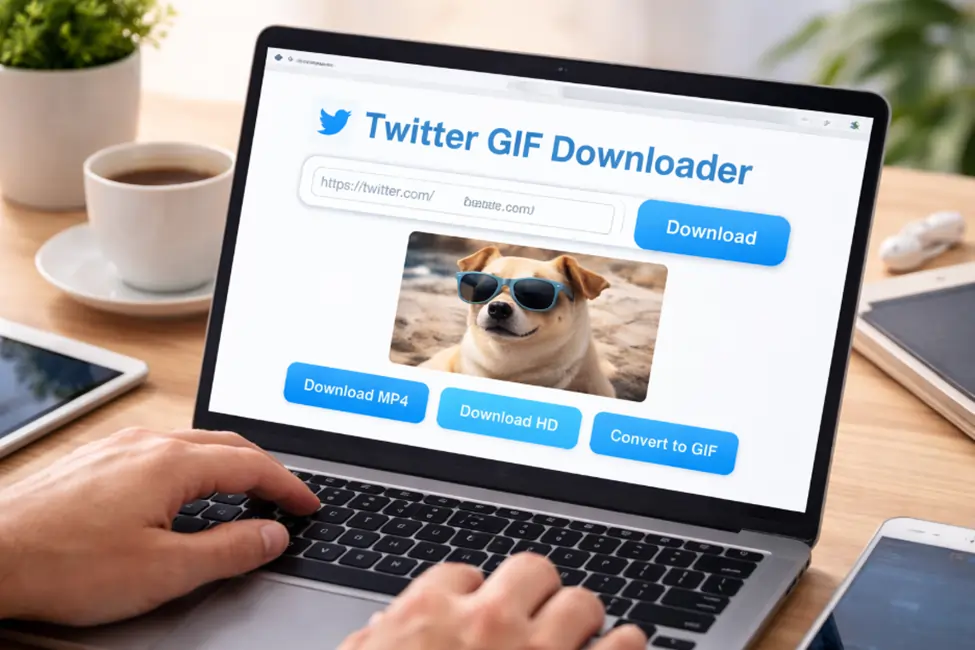
To start, open up your Twitter and find the tweet with a GIF in it. Then click on the share icon and copy the tweet link. After that, paste the link into an online Twitter GIF downloader. Within seconds, the tool processes the tweet and delivers a downloadable file, typically in MP4 format.
Because Twitter stores GIFs as looping videos, most of the conversion tools convert them to MP4 files by default. This format maintains quality while remaining lightweight. If necessary, you can always later convert the video to a GIF using an online converter.
This method works very well because it's fast, requires no sign-up, and it works completely within your browser. As a result, it's perfect for quick saves during active workflows.

Another great way is to use websites created specifically to download Twitter media. These platforms support GIFs, videos, and images without extensions or software.
Start by copying the tweet URL with the GIF. Then, paste it into the input field of the downloader and submit the link. The site extracts the media and shows the available download options. Typically, you are able to choose different resolutions or formats based on your needs.
What makes this method useful is that it is flexible. You can download quality files for editing or smaller files for quick sharing. Additionally, these tools typically work on both desktop and mobile browsers.
However, make sure you stay away from sites that are overloaded with pop-ups. Choose clean interfaces that focus on functionality to keep the process smooth and secure.
If you want to take a manual approach without using any third-party websites, browser developer tools are a safe option. This method is most efficient on desktop browsers such as Chrome or Firefox.
First, open the tweet that has the GIF in it and let it play all the way through. Then, right-click anywhere on the page and click "Inspect" or "Developer Tools." Go to the "Network" tab and sort results by media. Refresh the page while the tools are open.
You'll notice a media file, most often with a .mp4 extension. Once they are found, open the file in a new tab and use the save feature in the browser to save the file. Although this method requires a basic technical familiarity, it gives you full control. More importantly, it does not rely on any external services and does not fail even when download sites are temporarily unavailable.
The other no-app solution is Twitter bots, which respond directly to the links in tweets. These bots automatically process media and return downloadable media links.
To use this method, reply to the tweet with the GIF in it or send the tweet link to the bot using direct message. Within moments, the bot responds with the download link or media file.
This option is convenient because it works completely within Twitter's interface. You don't need to open any more tabs or websites. However, response time can differ depending on traffic.
Additionally, bots may also experience downtime as a result of restrictions on the platform. Therefore, this method is best used as a secondary method rather than your primary method.
Since Twitter GIFs download as MP4 files, converting them back into GIFs is often necessary. Fortunately, online video-to-GIF converters make this process simple.
After downloading the MP4 file, upload it to a browser-based converter. Then, adjust settings such as duration, frame rate, and resolution. These controls help you balance quality and file size.
Once conversion is complete, download the GIF and use it wherever needed. This final step ensures compatibility with platforms that specifically require GIF formats.
Saving GIFs from Twitter doesn’t require apps, extensions, or complicated setups. With the right browser-based methods, you can capture and reuse content quickly while maintaining quality.
Whether you prefer automated tools, manual techniques, or mobile-friendly options, each method offers a reliable way to get the job done. Choose the approach that fits your workflow, and you’ll never lose a great GIF again.





















 consultants ltd.jpg)


